
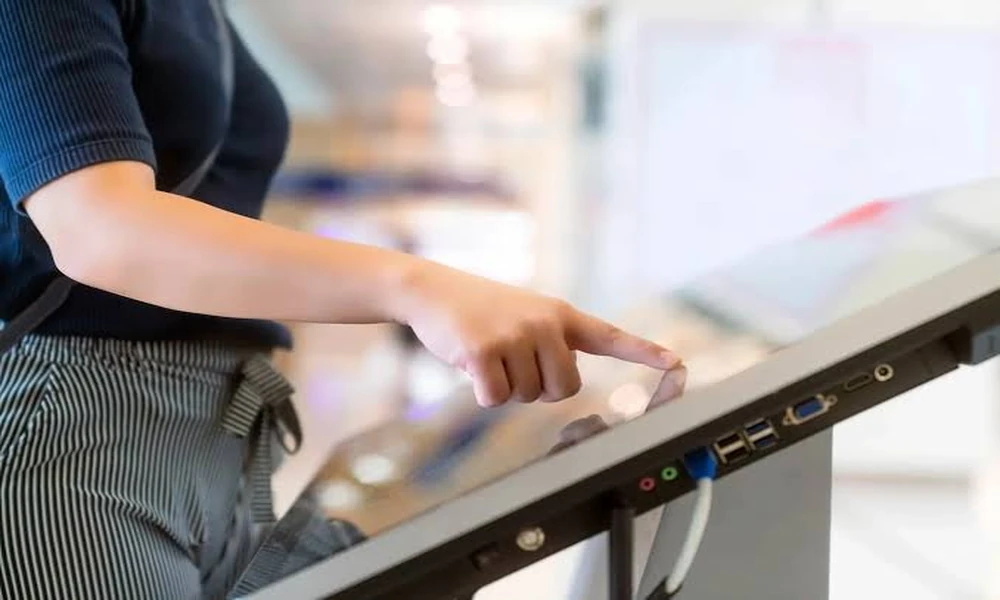
Remote monitoring lets retail teams see every kiosk’s status from one dashboard. When a kiosk drops offline or its signal weakens, an alert goes out straight away. Many issues can then be fixed remotely, without waiting for a complaint or sending a technician.
Most kiosk problems aren’t noticed by the people who can fix them. A frozen screen may sit unnoticed for hours until a customer mentions it to staff. By then, sales have already been lost.
Retailers looking into monitoring usually want to know two things. What does it track, and does it really reduce service calls? If you’d like to learn more about managed kiosk connectivity, it helps to first understand how monitoring works in a real store.
How a Monitoring Alert Plays Out
Here’s what typically happens when a kiosk has a problem:
- 9:02 am: A self-ordering kiosk loses its connection.
- 9:03 am: The monitoring platform detects the drop and sends an alert to the support team.
- 9:05 am: Support checks the dashboard. Signal looks normal, so the device is likely frozen.
- 9:06 am: Support triggers a remote reboot.
- 9:09 am: The kiosk comes back online. Store staff never had to step in.
Without monitoring, the same issue might wait until lunchtime and need a site visit.
What Monitoring Usually Tracks
| What’s Tracked | Why It Helps |
|---|---|
| Online status | Shows instantly which kiosks are down |
| Signal strength | Flags weak locations before they fail |
| Data usage | Prevents surprise overage charges |
| Device health | Spots routers that keep restarting |
| Uptime history | Reveals patterns by store or time of day |
Alerts Worth Setting Up
Too many alerts cause staff to ignore them. Start with a short list:
- Kiosk offline for more than a few minutes
- Signal dropping below a set level
- Data use nearing the monthly limit
- Repeated reboots within one day
Add more only when there’s a clear reason.
When Remote Reboot Helps and When It Doesn’t
Remote reboot fixes many common problems, including frozen software, stuck connections and devices that stopped responding after an update. Some management tools can restart a kiosk even when its operating system has locked up.
It won’t fix physical issues. Damaged screens, unplugged cables, power outages and broken card readers still need someone on site.
Getting Started in Five Steps
- List every kiosk and its location.
- Connect each one to a monitoring platform.
- Set up a small number of useful alerts.
- Decide who responds to each type of alert.
- Review reports monthly and adjust.
Teams comparing options can learn more about how monitoring and remote reboot tools work together in managed setups.
Where Monitoring Falls Short
Monitoring only helps if someone acts on it. Alerts sent to an unchecked inbox change nothing. Some teams also never review monthly data, so the same kiosks keep failing.
Store changes affect results too. New shelving, refits or extra devices on the network can weaken a connection that was once stable.
Frequently Asked Questions
- Does monitoring replace technicians? No, but it cuts unnecessary visits.
- Can alerts go to a phone? Many platforms send text or app alerts.
- Is remote reboot safe? Yes, when only authorised staff can use it.
- How quickly do alerts arrive? Usually within minutes of a problem.
Monitoring doesn’t prevent every fault. It shortens the time between a problem and a fix. Check the dashboard daily, review reports monthly and act on what you see. Consistent follow-through is what turns alerts into real uptime.

Comments are closed.